Document Scanning Guide
The Scan Documents screen is where you run document scanning sessions from a scanner or import existing image files from your computer.
1. Preparing before scanning
- Check that the scanner is powered on and connected to the computer.
- Remove all staples and paper clips from the stack.
- Smooth out any curled or creased corners.
- Place the documents neatly in the automatic document feeder (ADF) or face down on the scanner glass.
2. Choosing scan parameters
On the top toolbar, check 3 basic parameters:
- Scanner: Select the name of the connected scanner (for example, Fujitsu fi-7160).
- Scan mode:
- Single-sided: For documents printed on one side only.
- Duplex: Automatically scans both the front and back of the sheet.
- Color:
- Black & white (or Grayscale): For ordinary text, keeps files small and text clear.
- Color: For documents with red stamps, blue-ink signatures, or attached images.
- Resolution (DPI): Set 300 DPI for the most accurate text recognition.
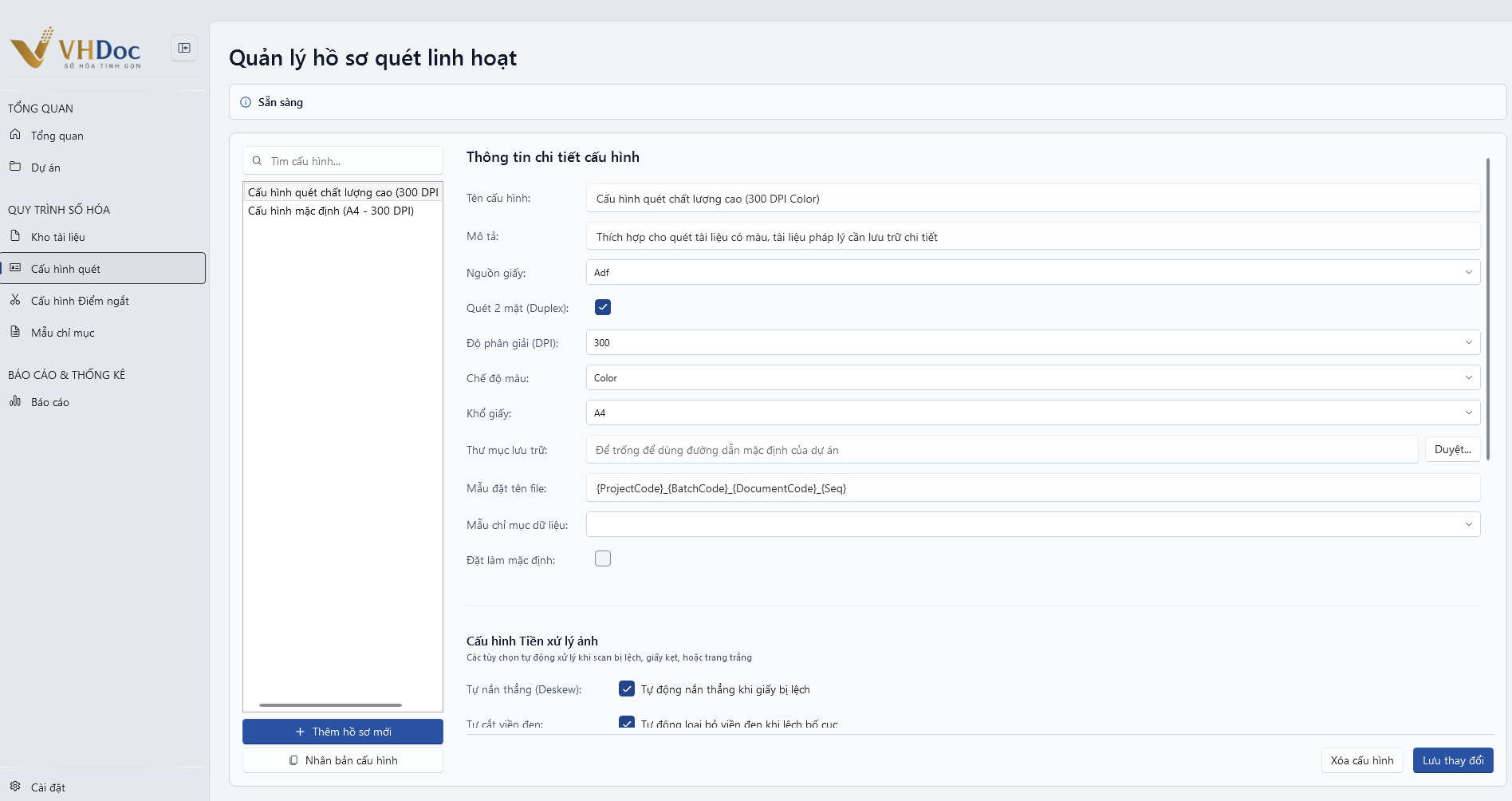
Figure: Flexible scan profile management and image pre-processing configuration
3. Starting a scan
Scanning a new stack
- Place the documents in the feeder tray.
- Click the "Start scanning" button on the screen (or press
F9on the keyboard). - The scanner will automatically pull each sheet and the images will appear on screen immediately.
Adding pages to the current stack
If the document set is thick and the tray does not hold it all at once:
- When the scanner finishes the first pass, place the next stack of paper in the tray.
- Click the "Resume scanning" button so the new pages continue after the previous ones.
Hands-free automatic scanning
- If you have many consecutive stacks of documents: click the "Auto scan" button.
- With this mode enabled, each time you place more paper in the scanner tray, the scanner runs automatically without you clicking anything on the computer.
Importing existing image/PDF files from the computer
- If the documents were scanned earlier or photographed with a phone: click the "Import files" button (or press
Ctrl + I) to select image or PDF files to bring into the software.