VHDoc — Document Digitization Software
VHDoc is a dedicated document scanning and digitization application that helps agencies and businesses turn stacks of paper records into electronic documents quickly, automatically, and easy to look up.
The software is designed to be simple and friendly: users do not need to be tech-savvy to become proficient within a few minutes of getting started.
Document digitization workflow
Digitization in VHDoc takes place automatically through 5 consecutive steps:
🖨️
1. Scan documentsLoad paper into the scanner
➔
📑
2. Auto-split recordsUsing QR codes and barcodes
➔
✨
3. Clean up imagesAuto-deskew & remove edges
➔
🔍
4. Recognize textAuto-read numbers and dates
➔
💾
5. Save & export filesExport PDF or TIFF files
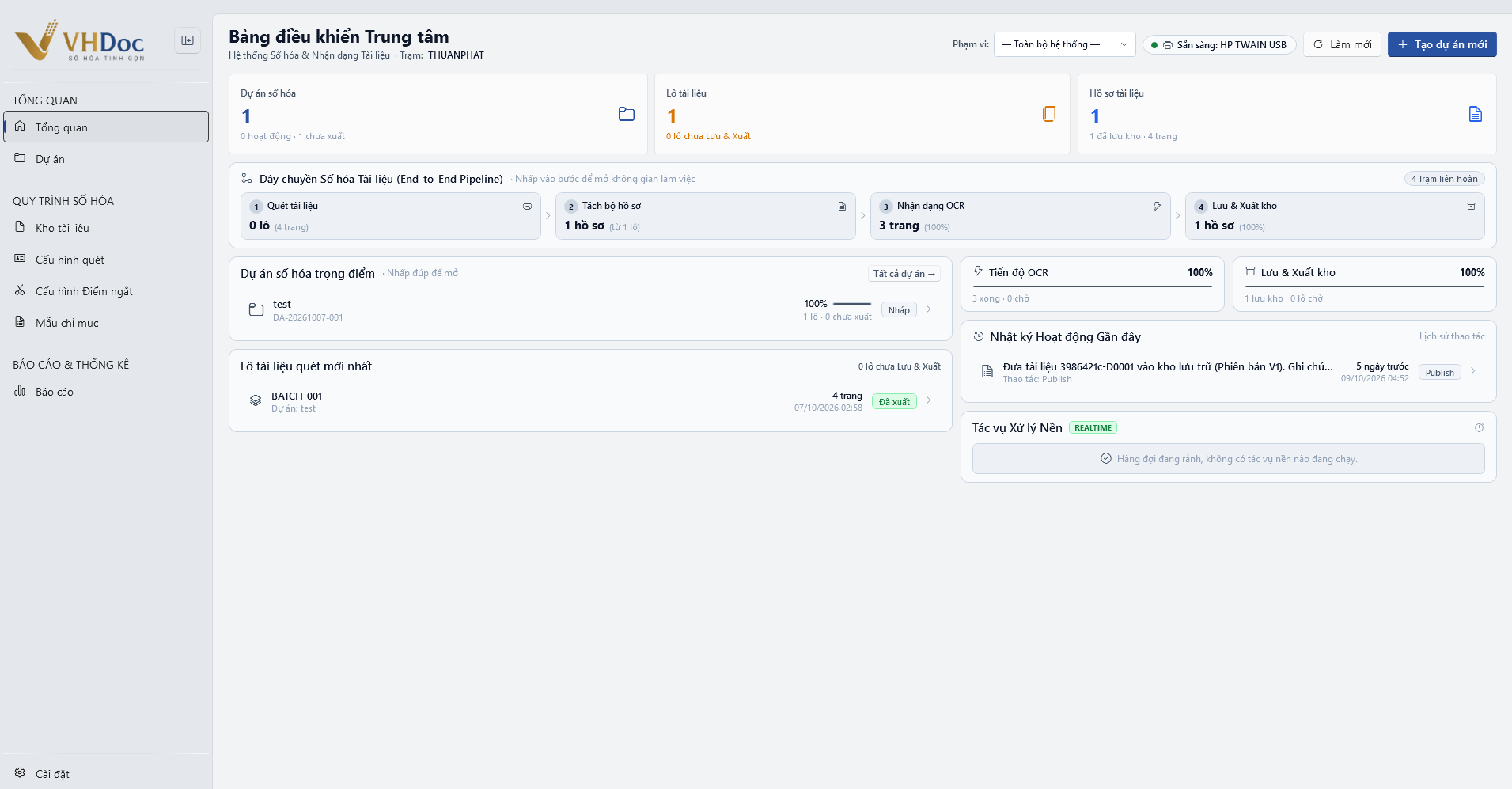
Figure 1: The central dashboard and the end-to-end document digitization pipeline in VHDoc
Software highlights
- Continuous scanning without touching the mouse: Just place paper in the scanner tray and the software automatically feeds and captures pages.
- Automatic document splitting: You can place a QR-coded sheet or a blank sheet between two records and the software will understand and split them into two separate documents.
- Automatic document enhancement: Skewed pages are rotated straight, and black paper edges or smudges are filtered out.
- Instant full-text search: Thanks to Vietnamese text recognition, you can type any word contained in a document to find the record immediately.
- Cross-platform support: Runs smoothly on Windows (Windows 7 and later), Linux, and macOS.
- Easy digital stamping: Lets you apply business stamps such as Copy, Certified True Copy, Confidential, Urgent, Approved directly onto digitized document pages.
How to read this documentation
You can follow the guide step by step:
- Installation: How to install the software on your computer.
- Interface: Get familiar with the areas of the workspace screen.
- Scanning documents: Start your first document scanning session.
- Keyboard shortcuts: Shortcuts that help you work twice as fast.