Text Recognition & Information Extraction
The text recognition (OCR) feature turns scanned paper images into text that a computer can read, copy, and search. As a result, you do not have to retype document content by hand.
1. How to recognize text
The software supports 3 convenient ways to read text:
- Read the current page: Click the "Read this page" button (or press
Ctrl + Enter) to recognize the page you are viewing right away. - Read the entire record: Press
Ctrl + Shift + Enterso the software automatically reads all pages in the record set. - Automatic background recognition: When scanning a multi-page stack, the software automatically reads text page by page in the background. You can keep working or scan another record without waiting.
2. Checking text clarity
Every word and every page receives a clarity rating once recognition is done:
- 🟢 Green: Text is very clear; the software read it completely accurately.
- 🟡 Yellow: Text is slightly blurry or the document is old; you should give it a quick visual check.
- 🔴 Red: A blurry photocopy or handwriting; you can click the text box to correct it.
3. Document information panel
The information panel on the right of the screen provides standard input fields that comply with document archiving regulations:
| Field | Example | Meaning |
|---|---|---|
| Number and symbol | 123/QĐ-UBND | The document's reference number |
| Issue date | 15/10/2026 | The date the document was signed |
| Document type | Decision, Official Letter, Proposal... | Select the document type from a list |
| Subject / summary | Approval of the Q4 work plan... | A summary of the document content |
| Issuing agency | City People's Committee... | Name of the issuing agency |
| Signer | Nguyen Van A | Full name of the signer |
| Confidentiality level | Normal, Confidential, Top Secret | Security classification |
| Urgency level | Normal, Urgent, Express | Urgency level |
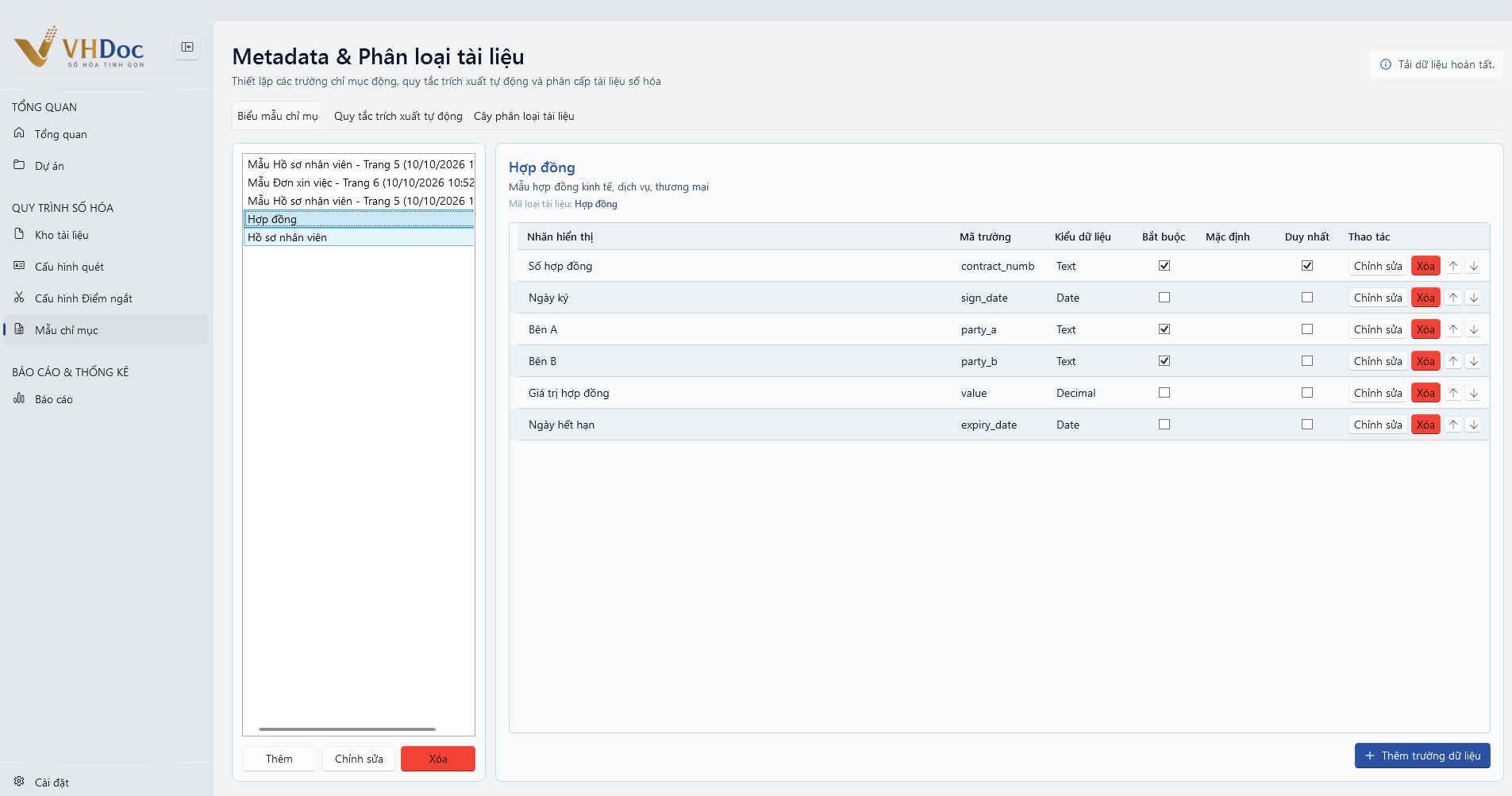
Figure: Setting up dynamic index templates and configuring Metadata fields
4. Smart automatic information filling
You do not need to spend time typing every information field:
- Automatic number and date recognition:
- When reading the first page, the software automatically looks for lines such as No.: 123/QĐ-UBND and Hanoi, October 15, 2026 to fill in the Reference number and Issue date fields automatically.
- Copy text directly from the image:
- Use the mouse to select (highlight) any line of text on the document image page.
- The software immediately reads that text and lets you click a button to assign it to the corresponding field (for example, assign it to the Subject field).